Introduction
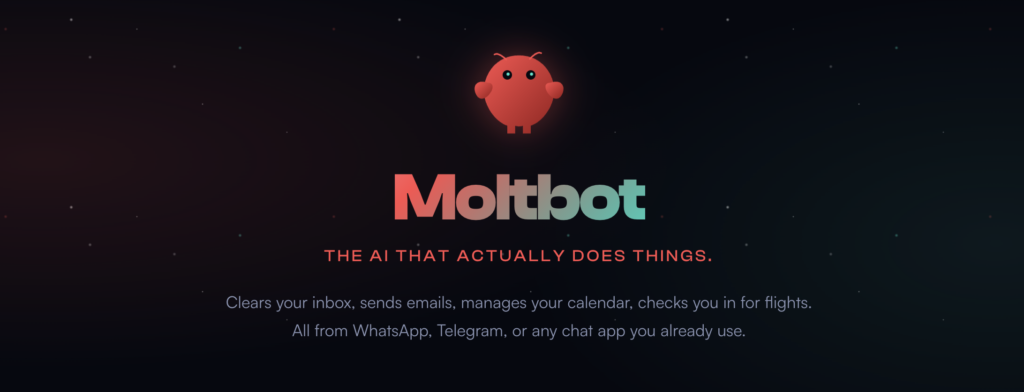
Looking for your own personal AI assistant that lives on your hardware and chats with you on WhatsApp and Telegram? Moltbot (formerly Clawdbot) is one of the fastest-growing open-source AI projects of 2026, with over 69,000 GitHub stars in just one month.
Moltbot gives you an always-on AI assistant that can reach out proactively—with reminders, alerts, and morning briefings—right in the messaging apps you already use. It is like having Jarvis from Iron Man running locally on your Mac mini.
In this guide, I will walk you through hosting Moltbot on a Mac mini, connecting WhatsApp and Telegram bots, and securing access properly.
What You Will Need
- Mac mini (Apple Silicon M1/M2/M3 recommended, but Intel works too)
- macOS (Ventura, Sonoma, or later)
- Node.js 22+ (runtime requirement)
- AI model subscription (Anthropic Claude Pro/Max or OpenAI ChatGPT/Codex)
- Telegram Bot Token (free from BotFather)
- WhatsApp setup (WhatsApp Business API account or use Baileys for personal)
- Basic terminal comfort
Step 1: Prepare Your Mac Mini
Install Node.js 22+
First, ensure Node.js 22 or later is installed. Use Homebrew:
brew install node@22
node --version  # Should show v22.x.x or higher
Set Up a Dedicated User (Optional but Recommended)
For better security, create a dedicated user for running Moltbot:
sudo dseditgroup -o edit -a moltbot -t user admin
sudo dscl . create /Users/moltbot
sudo dscl . create /Users/moltbot UserShell /bin/bash
sudo dscl . create /Users/moltbot RealName "Moltbot"
sudo dscl . create /Users/moltbot UniqueID 500
sudo dscl . create /Users/moltbot PrimaryGroupID 20
sudo dscl . create /Users/moltbot NFSHomeDirectory /Users/moltbot
sudo createhomedir -u moltbot
Step 2: Install Moltbot
Run the Onboarding Wizard (Recommended)
The easiest way is to use the built-in wizard:
npm install -g moltbot@latest
moltbot onboard --install-daemon
This wizard will guide you through:
- Gateway configuration
- Workspace setup
- Channel connections (Telegram, WhatsApp, etc.)
- Skills selection
- Daemon installation (launchd for auto-start)
Alternative: Manual Installation
If you prefer manual setup:
# Install globally
npm install -g moltbot@latest

# Start the gateway
moltbot gateway --port 18789 --verbose

# In another terminal, test messaging
moltbot message send --to +1234567890 --message "Hello from Moltbot"
Step 3: Configure AI Models
Anthropic (Recommended)
Moltbot strongly recommends Anthropic Claude Pro/Max (100/200) + Opus 4.5 for better long-context strength and prompt-injection resistance.
To add your Anthropic credentials:
moltbot configure --section models
Follow the prompts to authenticate with your Claude account via OAuth.
OpenAI
If you prefer OpenAI:
moltbot configure --section models
# Select OpenAI and follow authentication steps
Step 4: Set Up Telegram Bot
Create a Telegram Bot
- Open Telegram and search for @BotFather
- Send
/newbot - Choose a name (e.g., “MyMoltbot”)
- Choose a username (e.g., “my_moltbot_bot”)
- Copy the API token BotFather gives you (keep it secret!)
Connect Telegram to Moltbot
moltbot configure --section channels
Select “telegram” and enter:
- Bot token: The token from BotFather
- Webhook URL: Leave blank for polling (easier for Mac mini)
Test Your Telegram Bot
- Search for your bot in Telegram
- Start a chat with
/start - You should receive a pairing code on first message
- Approve the pairing:
moltbot pairing approve - Send a test message and watch Moltbot respond!
Step 5: Set Up WhatsApp
Option A: Baileys (Personal WhatsApp – Free, Experimental)
This uses a modified WhatsApp Web session. Best for personal use, not production:
moltbot configure --section channels
# Select "whatsapp"
# Baileys mode will be selected by default
Connect Baileys WhatsApp
- After configuration, Moltbot will display a QR code
- Open WhatsApp on your phone
- Go to Settings > Linked Devices
- Tap Link a Device
- Scan the QR code from Moltbot
- You are now connected!
Option B: WhatsApp Business API (Production)
For businesses needing reliable, scalable WhatsApp:
- Sign up for Meta Business Suite
- Create a WhatsApp Business Account
- Get API credentials (API key, phone number ID)
- Configure in Moltbot:
moltbot configure --section channels
# Select "whatsapp" and choose "business-api" mode
Step 6: Secure Your Moltbot
Enable DM Pairing (Critical Security)
By default, Moltbot uses DM pairing for security. Unknown senders receive a pairing code and their messages are not processed until approved.
This is the default behavior on Telegram, WhatsApp, Signal, iMessage, and other channels.
Approve Paired Users
When someone sends you a message, approve them:
moltbot pairing approve
This adds them to your local allowlist.
Run Security Doctor
Check for risky configurations:
moltbot doctor
Additional Security Best Practices
- Never expose your Gateway publicly without authentication
- Use Tailscale for secure remote access (see below)
- Rotate API keys regularly
- Monitor usage with
moltbot status - Keep Moltbot updated:
moltbot update - Use dmPolicy=”pairing” (default) instead of “open” for DMs
Step 7: Enable Remote Access (Optional)
Tailscale Serve (Tailnet-Only)
Access Moltbot from anywhere on your Tailscale network:
moltbot configure --section gateway
# Set gateway.tailscale.mode to "serve"
This exposes the Gateway dashboard and WebSocket control plane over Tailscale, using Tailscale identity headers for authentication.
Tailscale Funnel (Public with Password)
For public access with password protection:
moltbot configure --section gateway
# Set gateway.tailscale.mode to "funnel"
# Set gateway.auth.mode to "password"
Warning: Funnel requires password authentication and should only be used if absolutely necessary.
SSH Tunnel Alternative
For simple remote access without Tailscale:
ssh -L 18789:localhost:18789 user@your-mac-mini
Then access http://localhost:18789 in your browser.
Step 8: Set Up Auto-Start
If you used the onboarding wizard with --install-daemon, the daemon is already configured. The Gateway will start automatically on boot via launchd (macOS) or systemd (Linux).
Manual Daemon Setup
If you need to configure the daemon manually:
moltbot gateway install-daemon
Check Daemon Status
moltbot gateway status
Step 9: Test Everything
Test Telegram
- Send a message to your Telegram bot
- Check that you receive a response
- Test commands like “Check the weather” or “Remind me in 10 minutes”
Test WhatsApp
- Send a WhatsApp message to yourself from the connected number
- Verify Moltbot responds
- Test proactive features (ask Moltbot to remind you)
Test Gateway Dashboard
# On the Mac mini
open http://localhost:18789

# Or remotely via Tailscale/SSH tunnel
open http://localhost:18789
Step 10: Troubleshooting
Gateway Not Starting
moltbot gateway status
moltbot doctor
Channel Connection Issues
- Telegram: Verify bot token is correct
- WhatsApp (Baileys): Re-scan QR code if session expires
- Check logs:
moltbot gateway --verbose
High API Costs
Moltbot makes many token calls in the background (agent systems). Monitor usage:
moltbot statusConsider using cheaper models for routine tasks and reserving premium models for complex queries.
Conclusion
You now have a personal AI assistant running on your Mac mini, accessible via WhatsApp and Telegram. Moltbot can proactively reach out with reminders, process your messages, and even browse the web or run commands on your behalf.
Remember: Moltbot has access to your messages and can execute commands. Always keep it updated, use DM pairing, and never expose your Gateway publicly without proper authentication.
Useful Commands Reference
# Gateway management moltbot gateway start moltbot gateway stop moltbot gateway restart moltbot gateway status # Send messages moltbot message send --to +1234567890 --message "Hello" # Talk to the agent moltbot agent --message "Ship checklist" --thinking high # Configuration moltbot configure --section gateway moltbot configure --section channels moltbot configure --section models # Updates and maintenance moltbot update moltbot doctor moltbot status # Pairing moltbot pairing approveResources
- Official Website: https://molt.bot
- Documentation: https://docs.molt.bot
- GitHub: https://github.com/moltbot/moltbot
- Discord Community: https://discord.gg/clawd
Have questions? Leave a comment below or join the Moltbot Discord community for help!